
A photo restoration service that shows honest limits first
Start an old family or client photo in Faithful cleanup, inspect the original beside the result, and keep the untouched scan. The two visible modes run different enhancement models; neither proves that a reconstructed face is historically accurate.
Old Photo Enhancer
Clean up older photos with a mode that matches how much change you are willing to accept.
Best for light to moderate blur, compression, and grain
This is not a guarantee for severe damage, extreme out-of-focus photos, missing facial detail, or accurate face reconstruction.
Preview
Source photo
Newsletter
Join the community
Subscribe to our newsletter for the latest news and updates
Two modes for two restoration goals
Photo restoration needs clearer choices than one generic enhance button.
Faithful cleanup
This page begins in Faithful cleanup: Topaz Lens Blur V2 sharpening with JPEG output. It targets softness in an existing image; it is not a dedicated tear-repair, colorization or face-identity guarantee. Switch modes only after reading their displayed credits and limits.
Batch-friendly workflow
Select up to ten JPEG, PNG or WebP files, no more than 20 MB each. The existing batch workflow submits them sequentially and reports individual results. Approve a single representative photo first; this is not a promise that every scan in an album responds the same way.
Honest limits
Improves light to moderate blur, compression, and grain. It does not guarantee severe damage repair, out-of-focus recovery, or accurate face reconstruction.
Credit pricing you see first
The page shows credits by mode before the job starts, so restoration is not hidden inside the normal image upscaler.
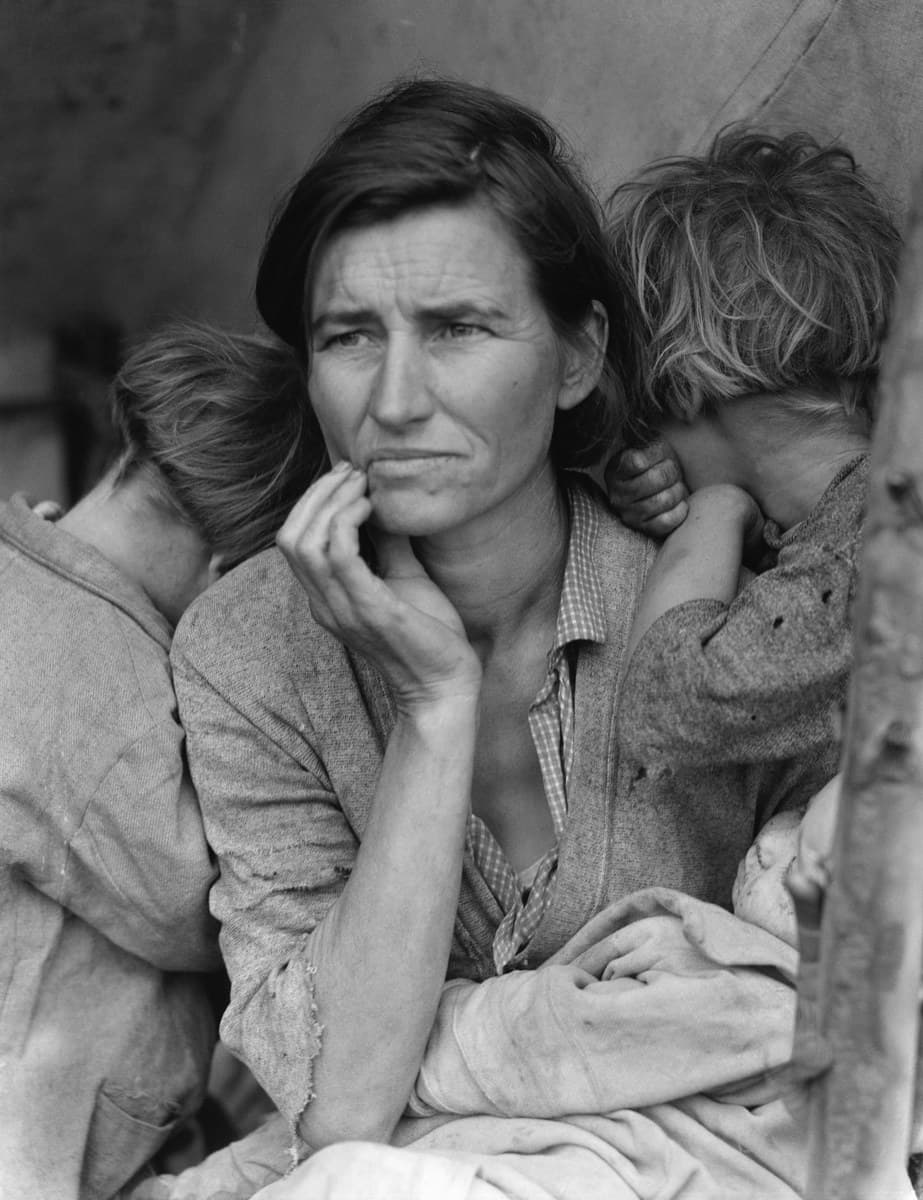
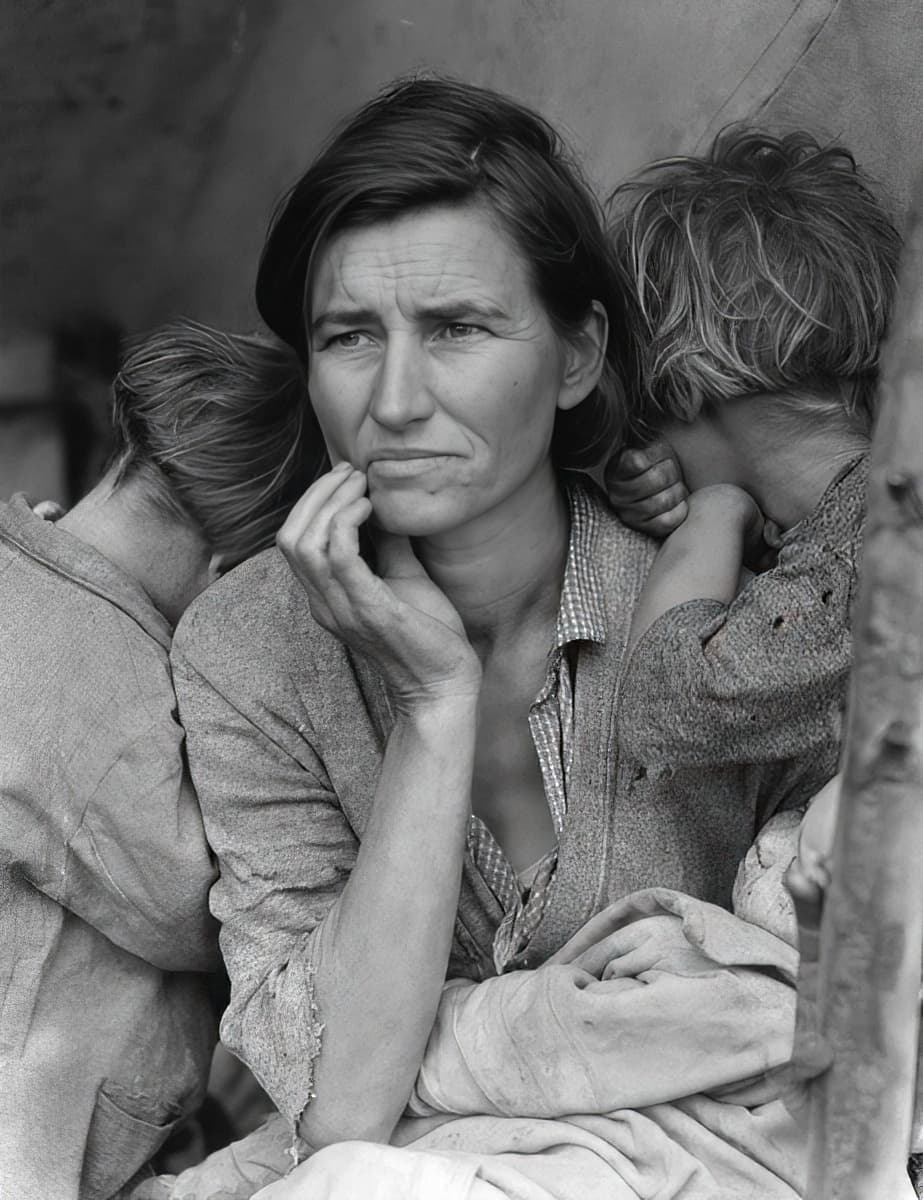
Source: Wikimedia Commons, File:Lange-MigrantMother02.jpg; Dorothea Lange, 1936, public-domain US federal FSA photograph. The Commons copy already has its documented crop and dust retouching. We only reduced the input and added no damage. The real 2026-10-08 output received no further sharpening. This illustrates enhancement, not a guarantee of historical detail or identity accuracy.
A real Faithful pass on a public-domain photograph
Migrant Mother, photographed by Dorothea Lange for the US FSA in 1936. We proportionally reduced the Commons scan to 923 × 1200 and ran Topaz Lens Blur V2 once. The output remains a 923 × 1200 JPEG.
Keep the archive original
This web comparison uses a reduced copy. The original high-resolution scan is retained separately, and the enhanced image does not replace it.
Compare individual details
Hair and fabric edges look stronger, but inferred texture can also appear. Compare facial features and fingers with the scan before keeping an edit.
How the restoration workflow runs
Upload a source photo, choose the right level of change, then review the output before using it elsewhere.
- Step 1
Upload the best source
Use the best scan or careful photograph of the original print you can obtain. Place the print flat, light it evenly, avoid glare and capture the full image before making a working crop. Keep the untouched file under a different name. A screenshot from a message may be convenient, but its compression and tiny faces limit what can be judged later. The upload accepts JPEG, PNG and WebP up to 20 MB per file. A local preview can be inspected before signing in; processing still requires a valid signed-in account and the credits shown by the tool.
- Step 2
Choose cleanup or reconstruction
Faithful cleanup is the starting selection on this page. It calls a sharpening model rather than inventing a separate historical-restoration engine. Reconstruction uses Phota Enhance and returns PNG; it can make more interpretive changes. Neither mode is an identity certificate. Compare the cost shown for the chosen mode immediately before submitting. If you need a larger file without this cleanup pass, follow the image-upscaler link instead. Do not buy several versions of the same photo at once merely to discover which job is still processing.
- Step 3
Review faces and hands
Compare the source and result at a matching viewing size, then inspect eyes, teeth, hairline, jewelry, handwriting and the edges of damaged areas. Ask someone familiar with the person to review an uncertain face. A plausible new detail may still be incorrect. Reject changes to identity or meaningful writing even when the result appears sharper. Keep a record of the source filename and selected mode, and approve the representative photo before using the same approach on an album. Automated improvement does not replace a retoucher’s judgment for large tears or missing facial features.
- Step 4
Download the result
Open the result and save the actual image, then confirm that the downloaded file decodes and contains the version you approved. Keep it beside the original scan rather than overwriting the source. Faithful cleanup requests JPEG and Reconstruction requests PNG; inspect the returned file rather than inferring its properties from a filename alone. If the final destination is a physical print, calculate the required pixels separately and review a print proof. This restoration pass does not set paper size, repair bleed, calibrate a printer or establish the original colors of a historical scene.
Before you run it
Missing image information cannot be verified by enhancement. A scan with reflections, a face only a few pixels wide or heavy missing areas may require a better capture or careful manual work. Start with one image whose important features you can compare against a known original.
For family records and paid client delivery, preserve the untreated scan, the processed result and the approval notes separately. Explain which changes were automated. Do not describe an invented face, signature, insignia or background feature as recovered historical fact.
If restoration is not the right fit for a purchased credit pack, support can still handle the refund route.
Photo restoration service FAQ
Short answers that keep restoration separate from image upscaling.
Is this a photo restoration service I can use for client work?
You can use the browser workflow for a permitted family or client source, with a review step before delivery. This page starts with the actual Faithful sharpening mode. It does not supply a human retoucher or certify identity. Keep the source and agree on an acceptable level of interpretation before presenting a result as completed client work.
Can I run multiple restorations?
The file picker accepts up to ten eligible images and the batch flow processes them one at a time. Each job has its own outcome; review every result, including failed entries. For one difficult image, resolve its existing task before adding it to another batch, so a delay does not become a duplicate paid request.
Can it perfectly restore faces?
No. It can sharpen or reconstruct plausible detail, but it does not guarantee accurate face reconstruction, especially when the original face is very small, blurred, or damaged.
What if restoration is not what I needed?
If a credit pack does not fit the restoration workflow, support can process the refund route rather than leaving you stuck.
Keep going
Restoration, upscaling, and studio delivery are separate workflows.
Old photo enhancer
Clean up blur, grain, and compression on a single family photo.
Image upscaler online
Enlarge an image to 2K, 4K, or 8K without a GPU.
Restoration for studios
A managed restoration pilot for studios and professional delivery.
AI restoration: limits and credits
What automated restoration improves on an old photo, what still needs a retoucher, and what each mode costs.